Simulator Tutorial
Four illustrated steps from picking a scenario to delivering the project.
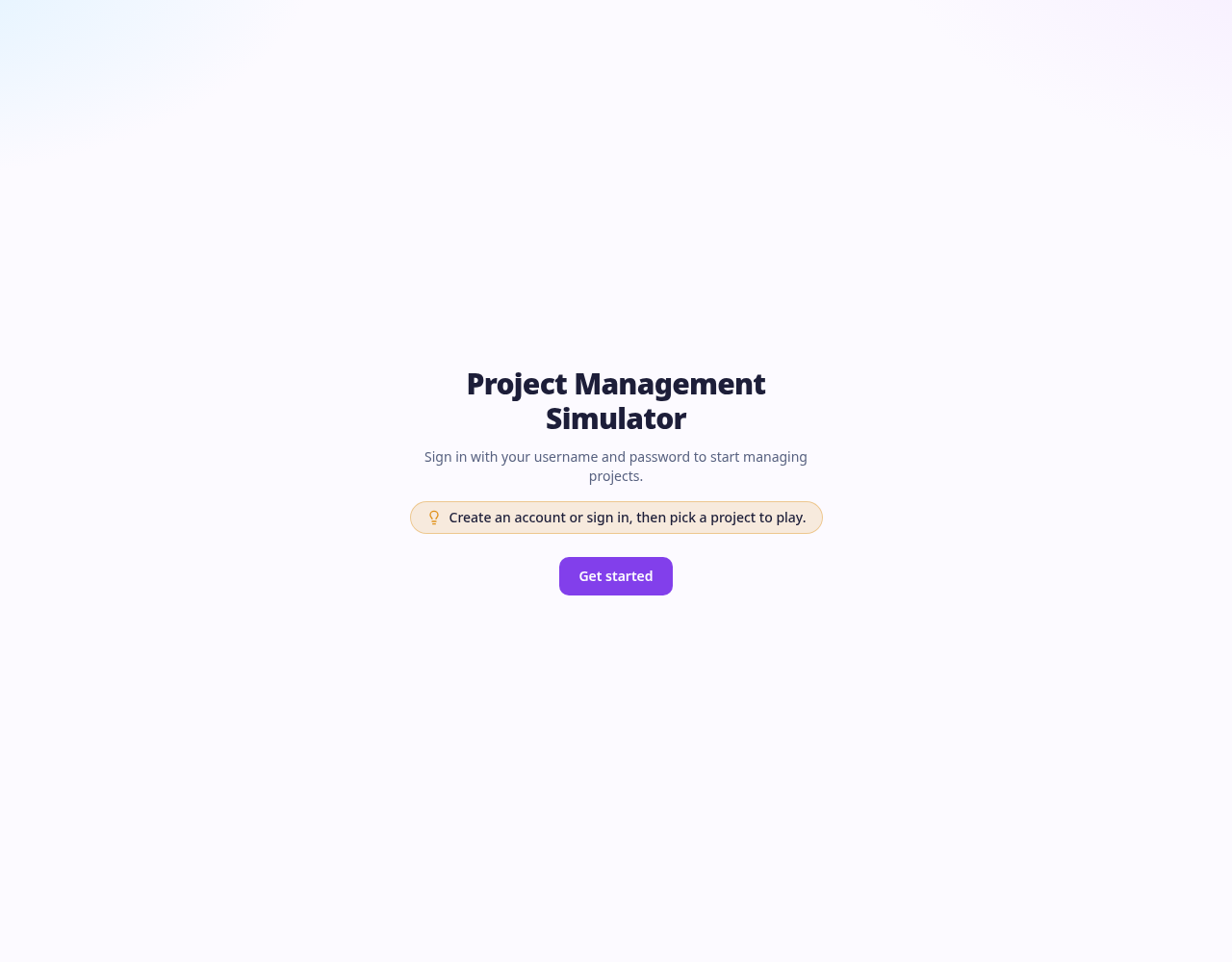
Step 1 — Sign in and accept the licence
Click Get started to create an account or sign in with your username and password (Google sign-in is also available).
The first time you sign in you are asked to read and approve the End User Licence Agreement. Tick the box and continue — you only do this once.
A small lightbulb line on every screen tells you what to do next.
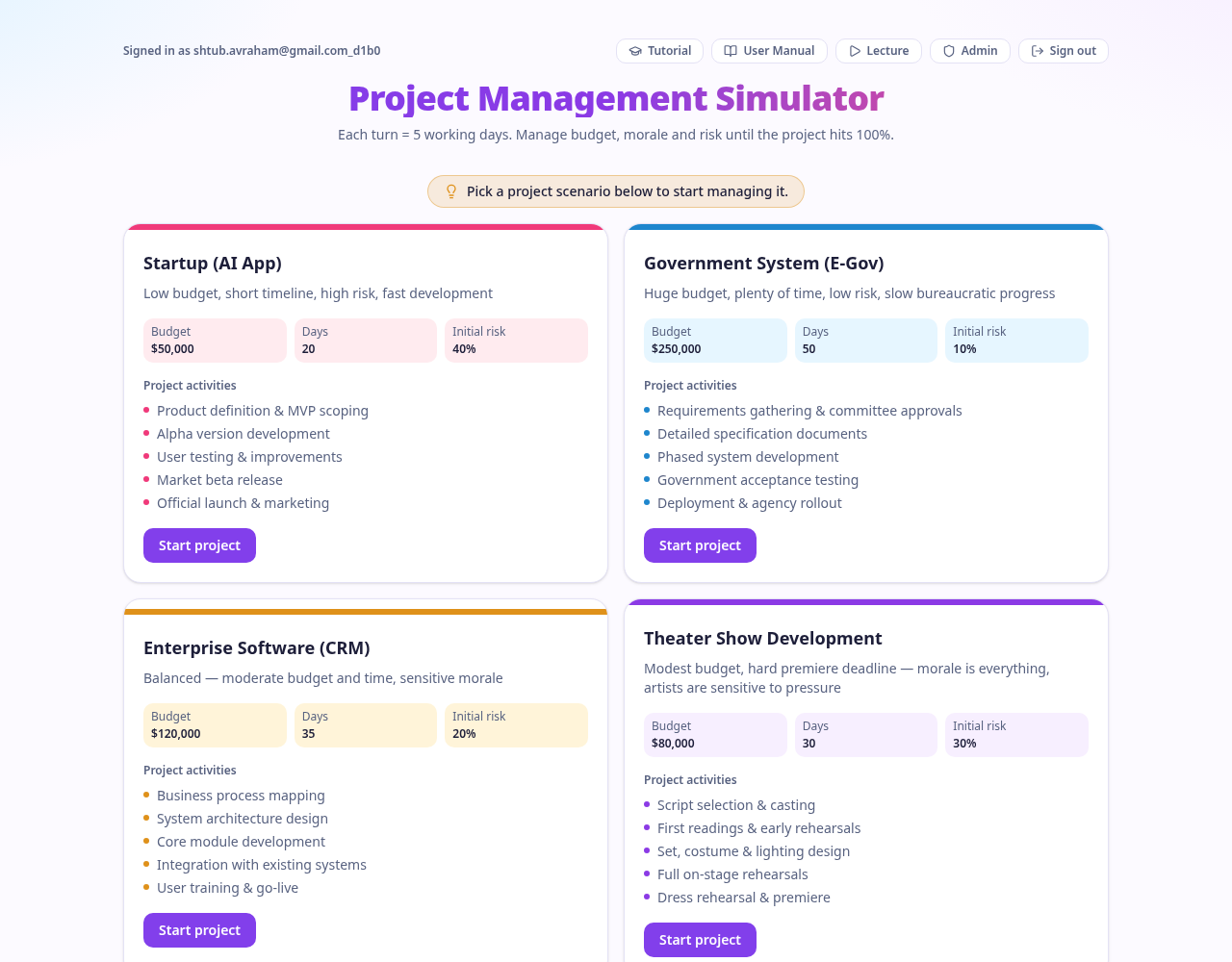
Step 2 — Choose a scenario
The home page presents four project scenarios: Startup (AI App), Government System (E-Gov), Enterprise Software (CRM), and Theater Show Development.
Each card shows the starting budget in US dollars, the number of working days, the initial risk level, and the five activities the project will go through. A startup is fast and risky, a government system is slow but safe.
The buttons at the top right open this Tutorial, the User Manual, the recorded Lecture, and — for administrators — the Admin console.
Click Start project on a card to begin.
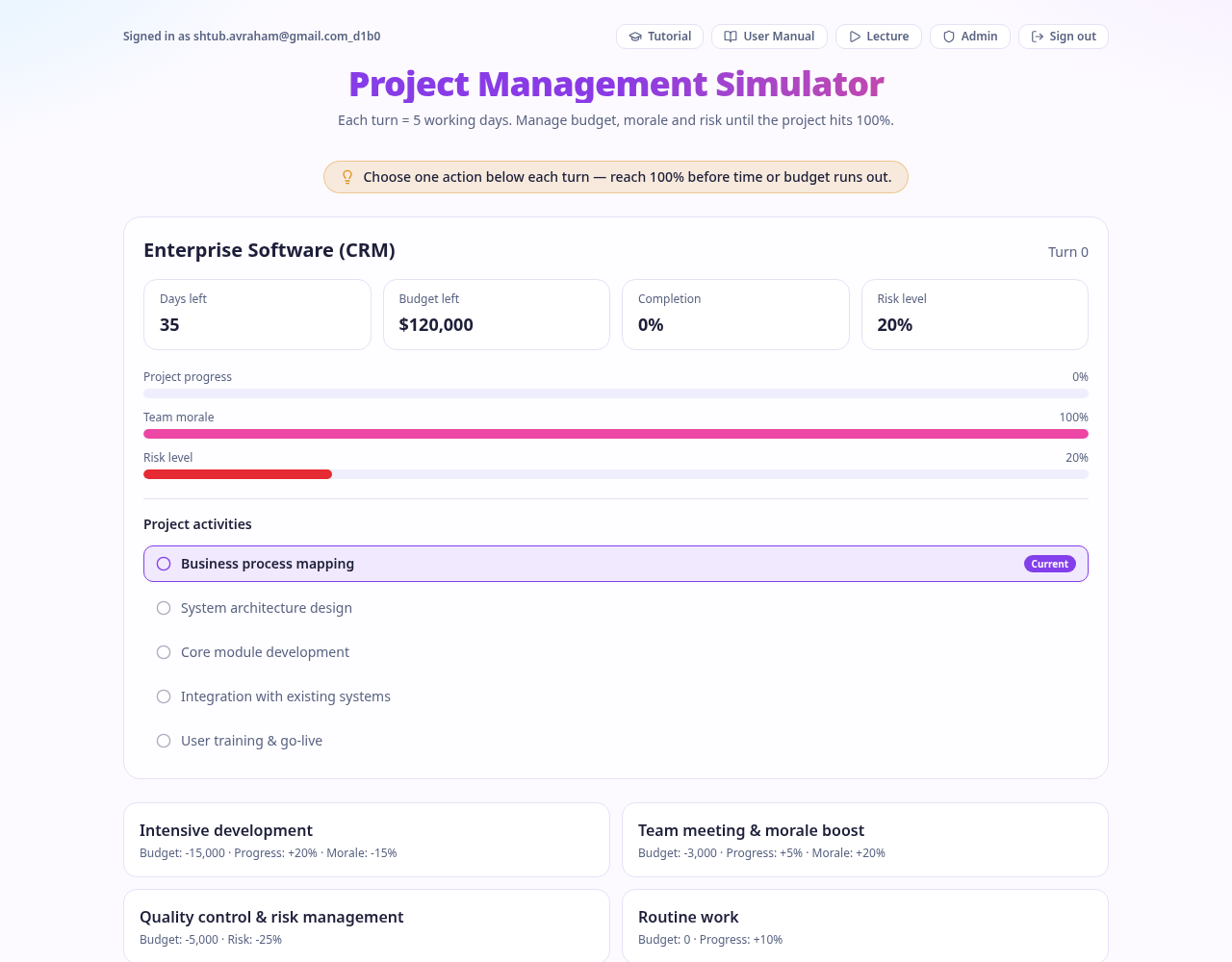
Step 3 — Take one action each turn
Each turn represents 5 working days. At the top you see days left, budget left, completion percentage and risk level, followed by progress, morale and risk bars.
The activity checklist shows where the project stands: the current activity is highlighted with a Current badge and finished activities are checked off.
Choose one of the four actions each turn: Intensive development (fast but expensive and tiring), Team meeting & morale boost, Quality control & risk management, or Routine work (free, steady progress). The exact cost and effect is printed on every button.
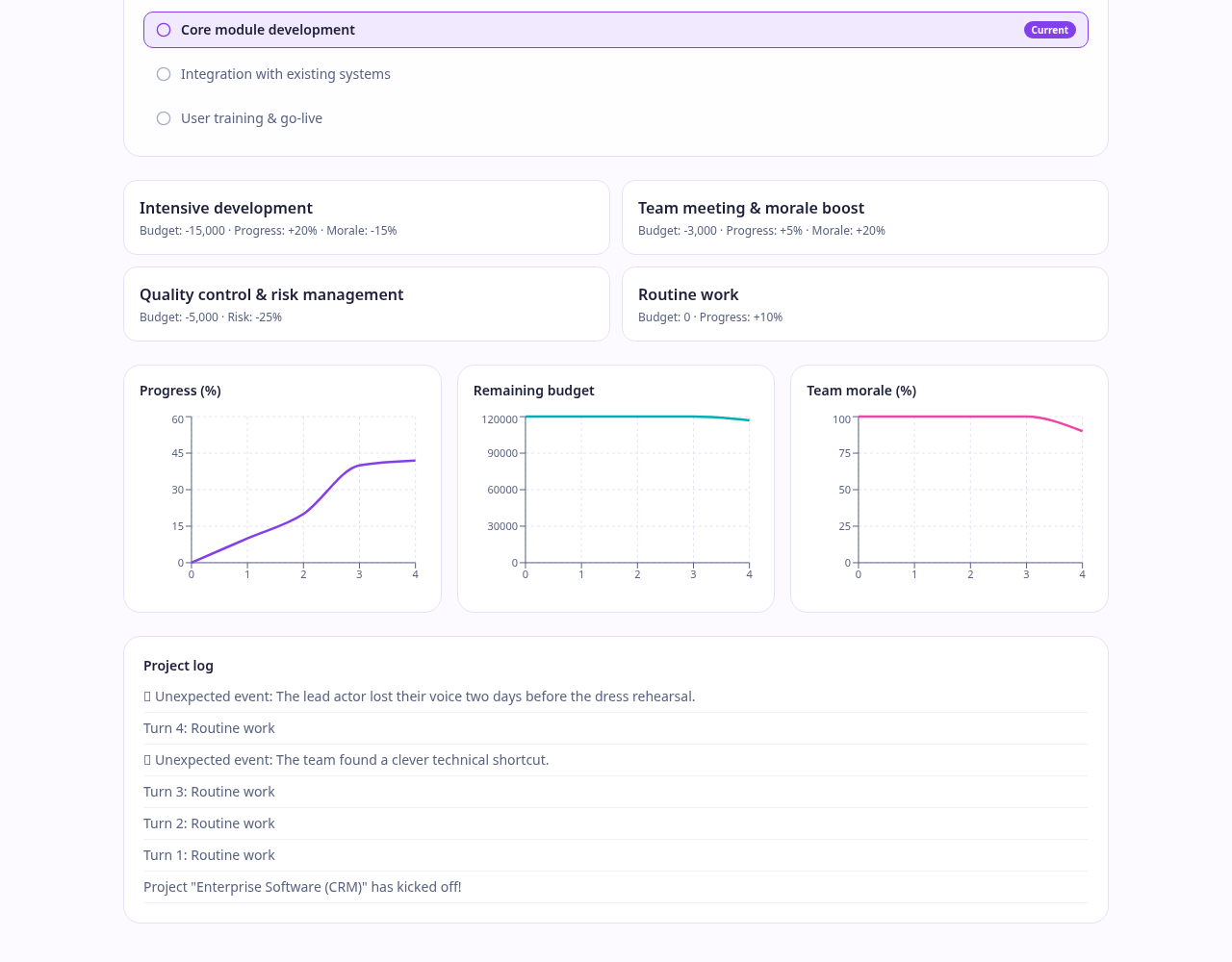
Step 4 — Watch the charts and the log
From the first turn onwards, three charts update after every decision: Progress (%), Remaining budget, and Team morale (%). Use them to spot dangerous trends early.
The project log underneath lists every action you took and every random event that occurred, most recent first. Unexpected events can help or hurt, and high risk makes failures more likely.
Step 5 — Finish and get your PDF report
You win by reaching 100% completion before time runs out and without going over budget. You lose if the budget goes negative, morale collapses to 0%, or the days run out.
When the run ends, a PDF report is downloaded automatically. It contains your user name, the project name, success or failure, the duration used, and the total cost. You can download it again with the Download PDF report button.
Click Play again to return to the scenario screen and try a different strategy.